When building pages in Elementor, you may occasionally find that a widget, button, dropdown, or image appears overlapped or completely hidden behind another element on the canvas or live site.
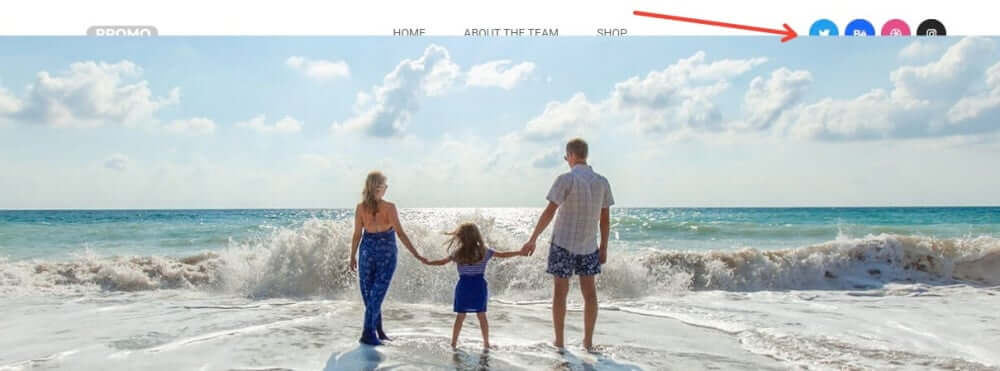
Element overlapping usually occurs due to stacking order rules, layout spacing adjustments, animation effects, or CSS positioning overrides. Follow the troubleshooting steps below to identify and resolve the cause.
1. Check Z-Index and Stacking Contexts
Z-Index controls the vertical stacking order of elements that overlap. An element with a higher Z-Index will always render on top of an element with a lower Z-Index.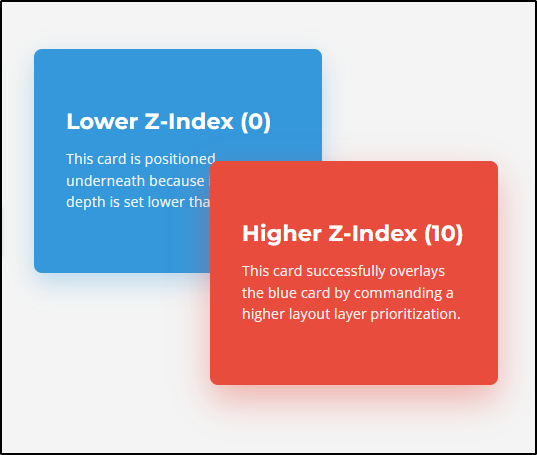
How to fix:
- Select the widget or container that is currently being covered up.
- Locate the Z-Index field:
- Elementor V3: Go to Advanced → Layout → Z-Index.
- Elementor V4 (Atomic Editor): Go to Style → Position→ Z-Index.
- Enter a higher numerical value (e.g.,
10or100). - Next, select the overlapping element (the item sitting on top) and ensure its Z-Index is set lower or left at default (empty).
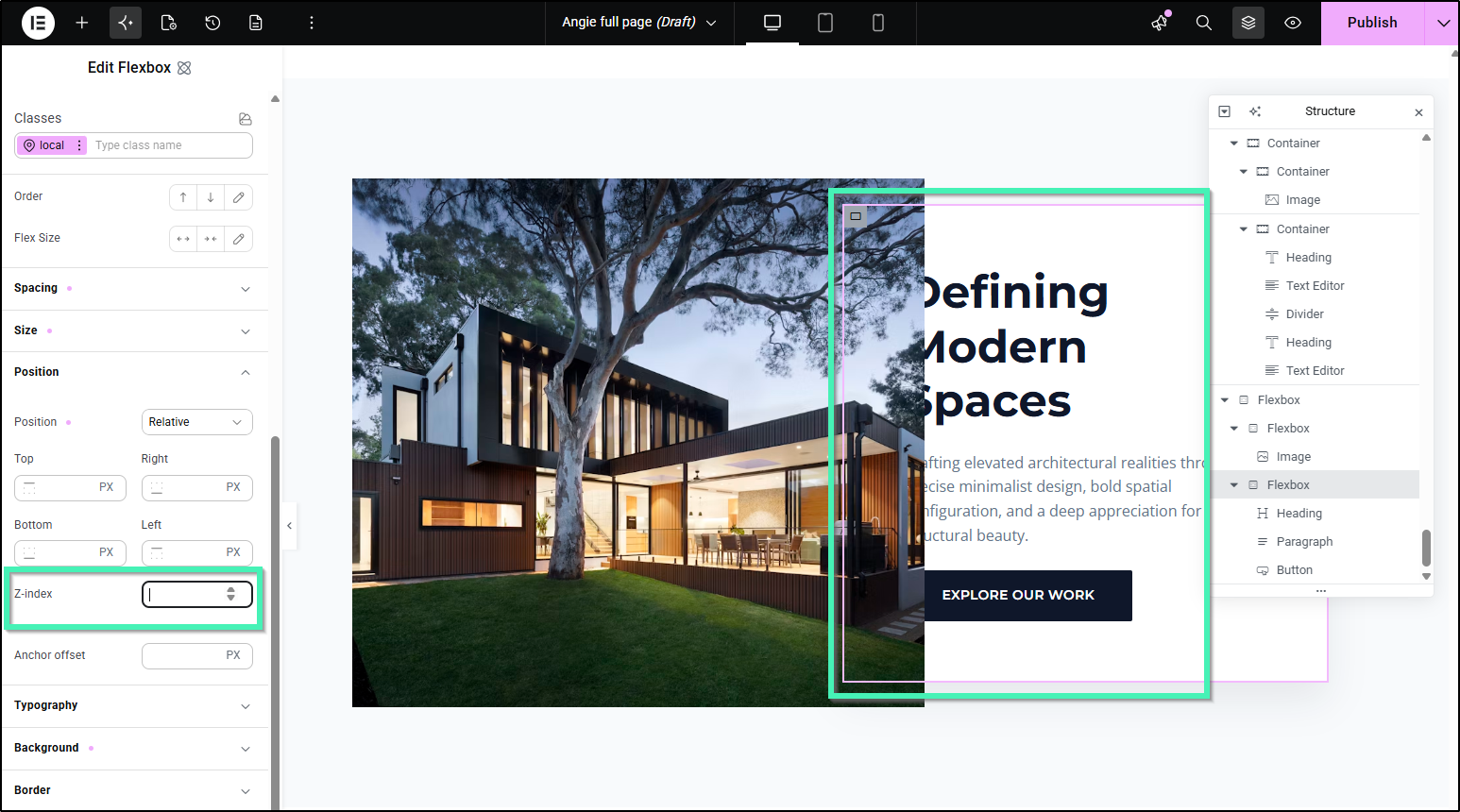
TipIf setting a higher Z-Index on the widget itself does not work, apply the higher Z-Index directly to its parent container. Z-Index rules are constrained by their parent container’s stacking context.
2. Inspect for Unintended Negative Margins
Negative margins are commonly used to create artistic overlapping layouts. However, a negative margin applied to an adjacent container, column, or widget can accidentally pull it over neighboring elements.
How to fix:
- Open the Structure panel to easily select elements sitting behind overlapping layers.
- Select the overlapping element (the item covering your widget).
- Check the Margin settings:
- Elementor V3: Found under Advanced → Layout → Margin.
- Elementor V4 (Atomic Editor): Found under Style → Spacing → Margin.
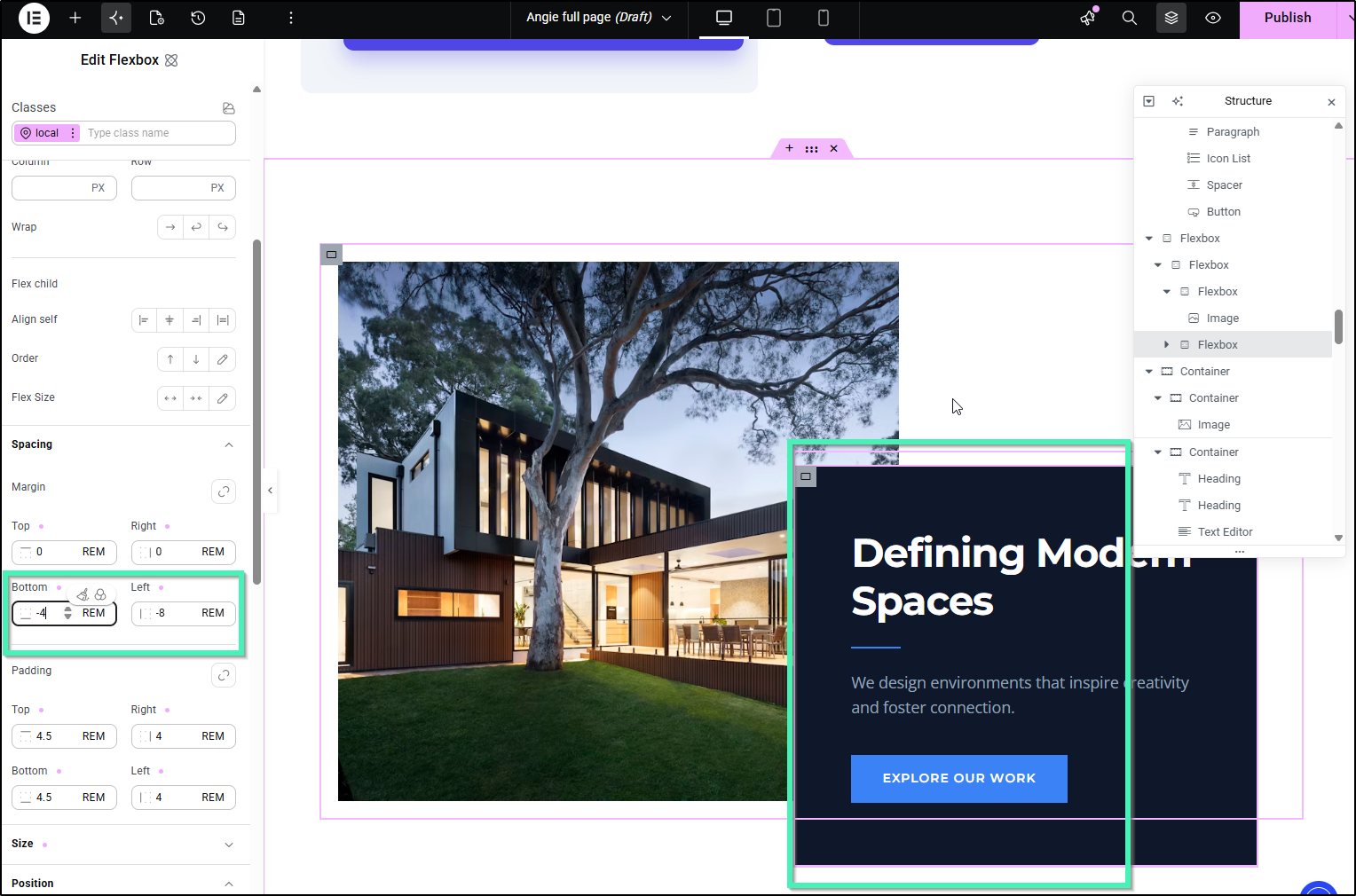
- Check if any side (especially Top or Bottom) has a negative value (e.g.,
-50px). - Click the Unlink Values (chain link icon) next to Margin to edit sides individually, or temporarily set all values to
0to test if the overlap disappears.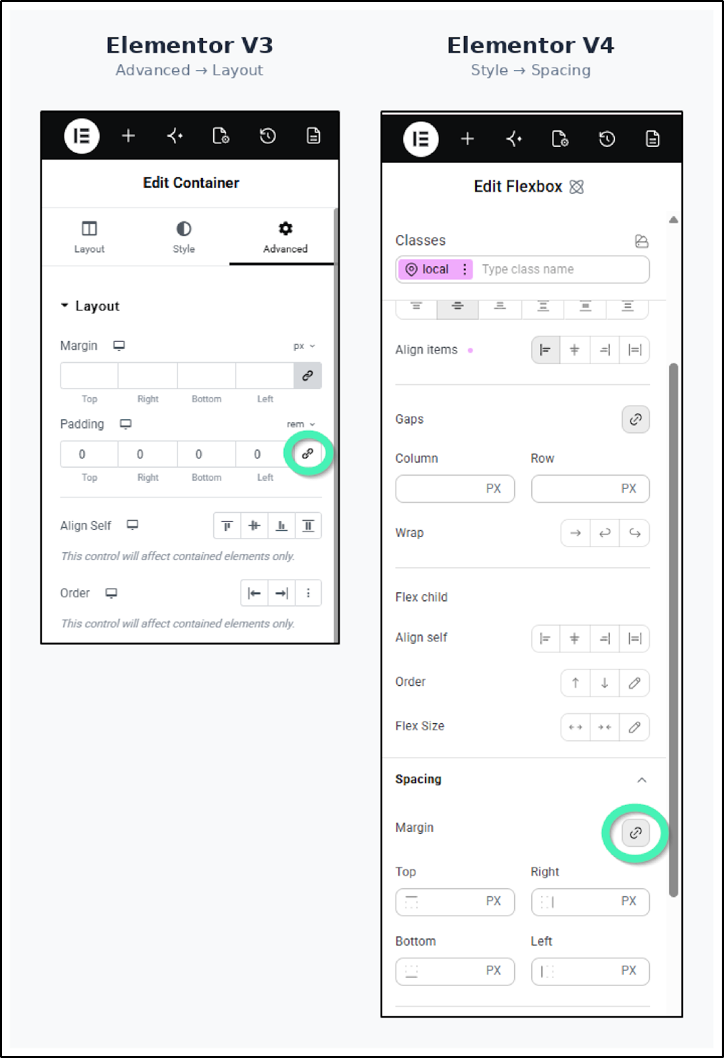
- If the negative margin was intentional, increase the Z-Index of the covered widget (as shown in Step 1) so it sits safely on top.
3. Check Motion Effects and Animations
When Motion Effects (such as Scrolling Effects, Mouse Effects, or Entrance Animations) are applied, elements shift visually along the X or Y axis. During playback, mid-motion, or after the animation finishes, the element’s rendered position may physically overlap nearby widgets.
How to fix:
- Select the element that is moving or causing the overlap.
- Navigate to the animation settings:
- Elementor V3: Go to Advanced → Motion Effects.
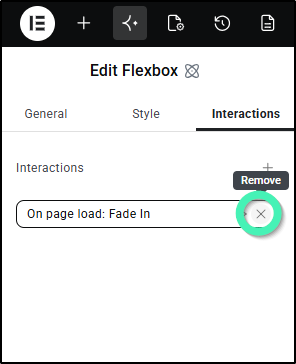
- Elementor V4 (Atomic Editor): Go to the Interactions tab.
- Temporarily remove or turn off the active interaction (e.g., click the X next to the trigger) to see if the element returns to its expected position.
- If the motion effect is required:
- In Elementor V3: Adjust the Viewport sliders so the motion path doesn’t intersect with neighboring elements.
- In Elementor V4: Under the interaction details, adjust the Start and End percentage values or tweak the Direction controls to restrict how far the element shifts or scales.
- Increase the Z-Index of the element you want to remain visible on top throughout the entire animation sequence.
4. Review Custom CSS and Absolute Positioning
Custom CSS rules applied via Elementor, child themes, or external plugins can override standard layout behavior. Properties such as position: absolute, position: relative, transform, or custom z-index declarations often cause unexpected layering.
How to fix:
- Select the covered widget and its parent container.
- Check the Custom CSS area:
- Elementor V3: Go to Advanced → Custom CSS.
- Elementor V4 (Atomic Editor): Go to the element’s Style → Custom CSS panel.
- Look for any positioning or spacing rules (e.g.,
position: absolute,margin-top: -100px,z-index: -1). - Temporarily clear or comment out custom CSS code to test the layout.
- Inspect site-wide CSS under WordPress Dashboard → Appearance → Customize → Additional CSS or Site Settings → Custom CSS for global positioning overrides targeting that element class.
See Also: How to use Z-Index in Elementor